Search and filter history
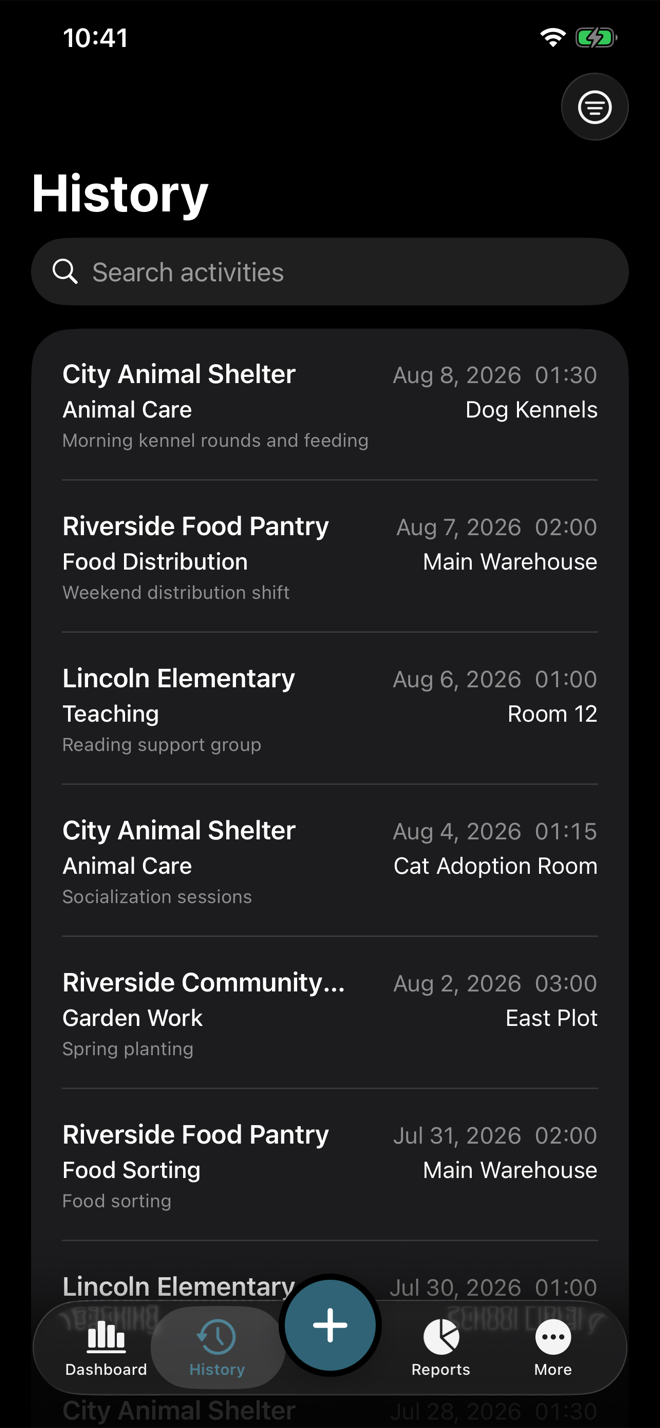
History is the full list of completed activities, newest first. Use it to find an entry, verify details, edit mistakes, or clear filters when a list looks empty.
Open History
Each row shows enough information to identify the activity: date, organization, activity type, duration, and location when one was saved. The filter icon in the toolbar opens the Filters panel described in step 3.
Search visible text
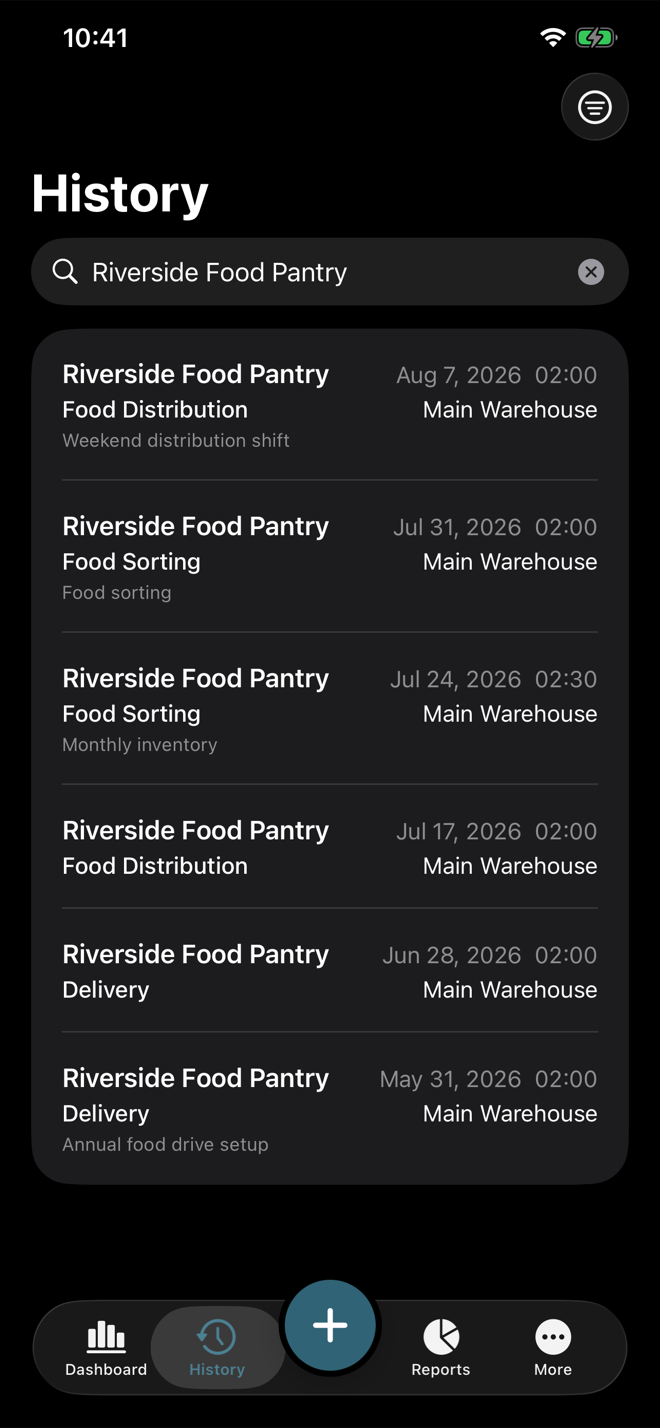
Use the search field to narrow by organization name, activity type, location name, or note text.
Apply filters
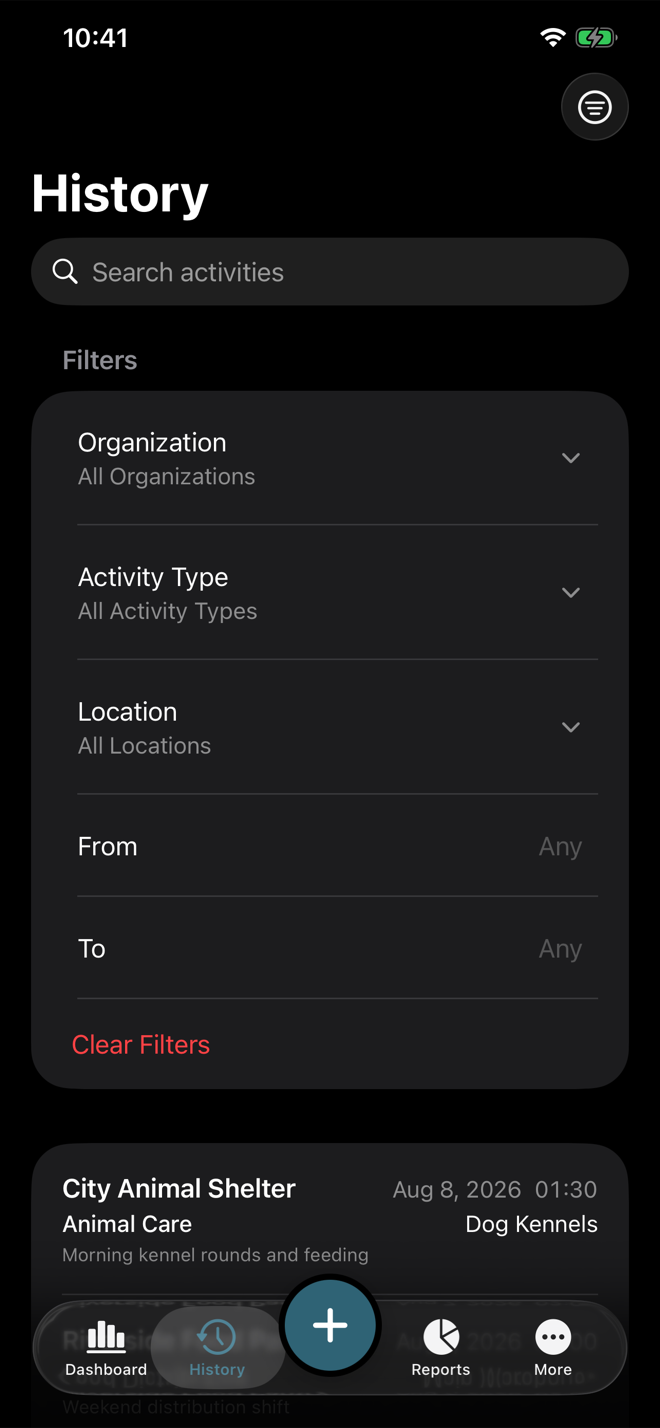
Filters are collapsed by default. Tap the filter icon in the toolbar to expand the Filters panel, then use the organization, activity type, location, and date filters together when you need a narrower list. Date filters can be left as Any when you do not want a date limit.
Open and correct an activity
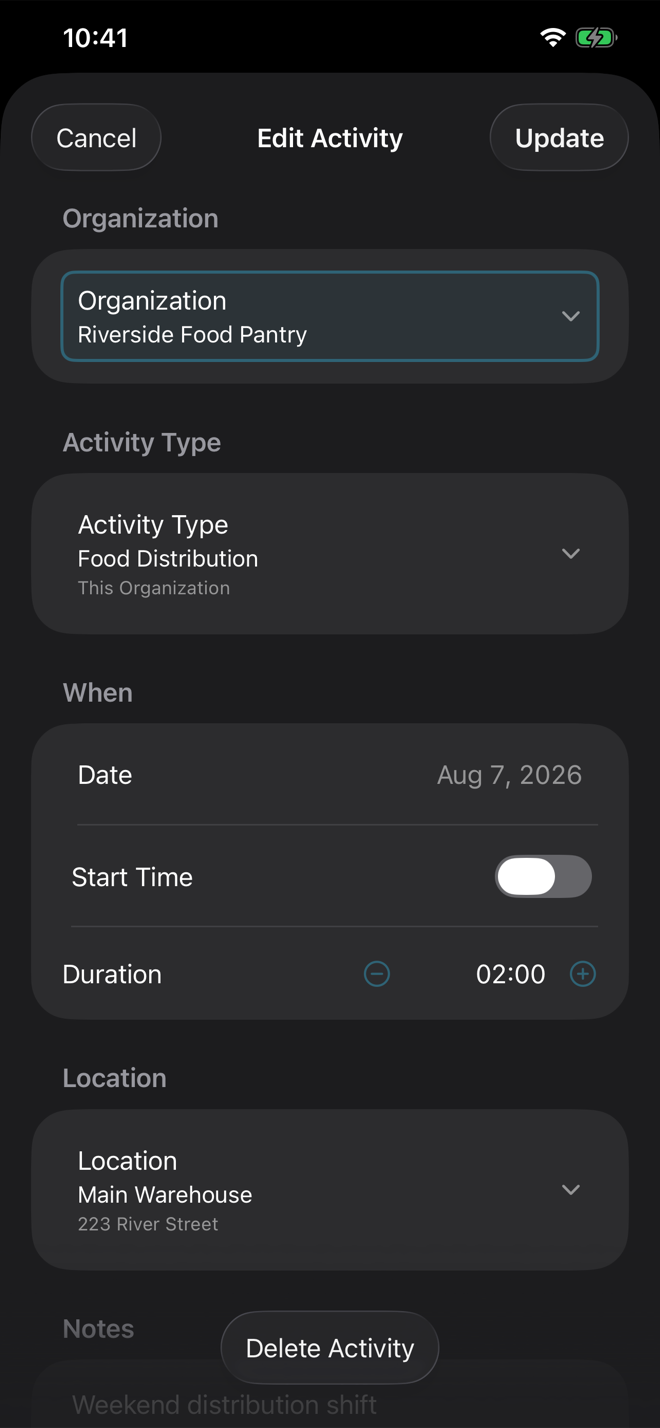
Tap any result to open it in the same edit screen used by Log Activity. Save changes with Update, or delete the activity if it was logged by mistake.
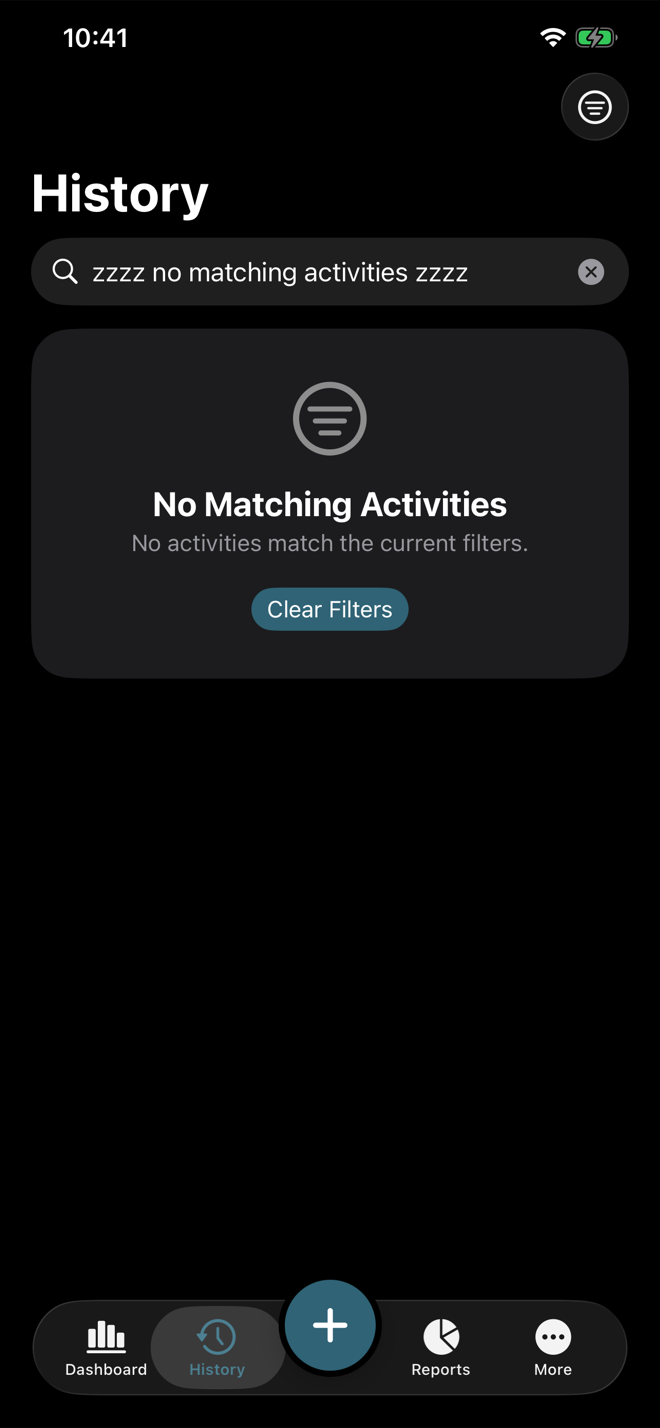
Clear filters when nothing matches
If the list is empty because of filters, use Clear Filters to return to the full history.