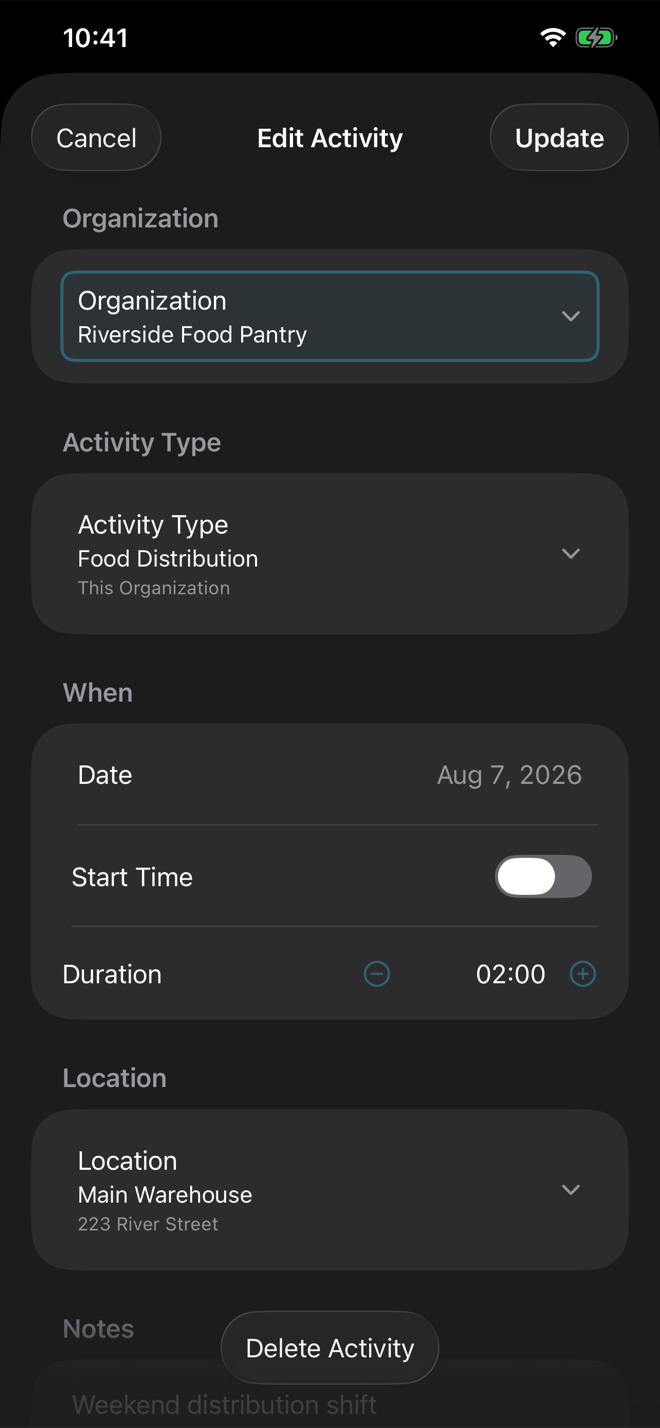
Log and edit activity
An activity is one completed volunteer session. It needs an organization, date, duration, and activity type. Location, start time, and notes are optional.
Start a new activity
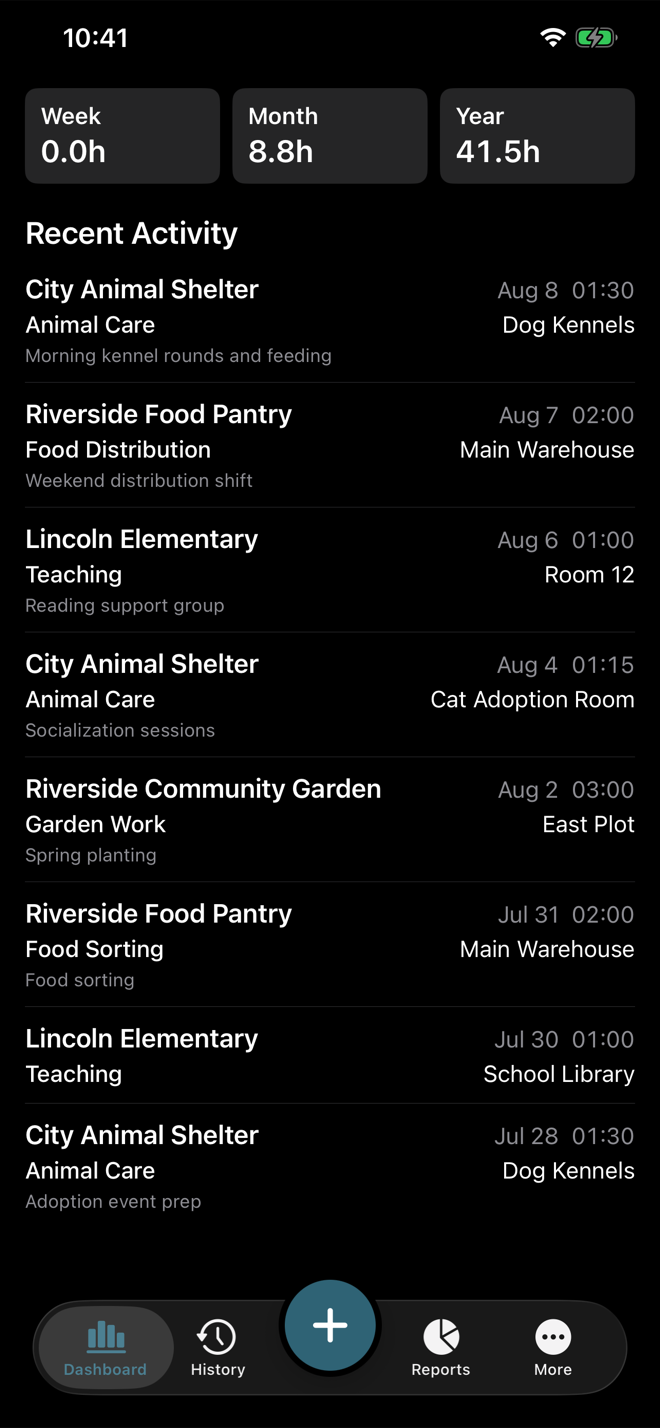
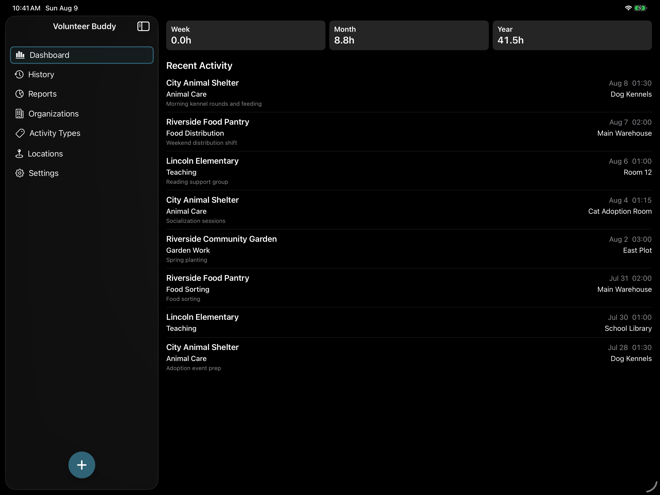
Tap the Log Activity button from the tab bar on iPhone, from the sidebar area on iPad, or from an empty state that offers it.
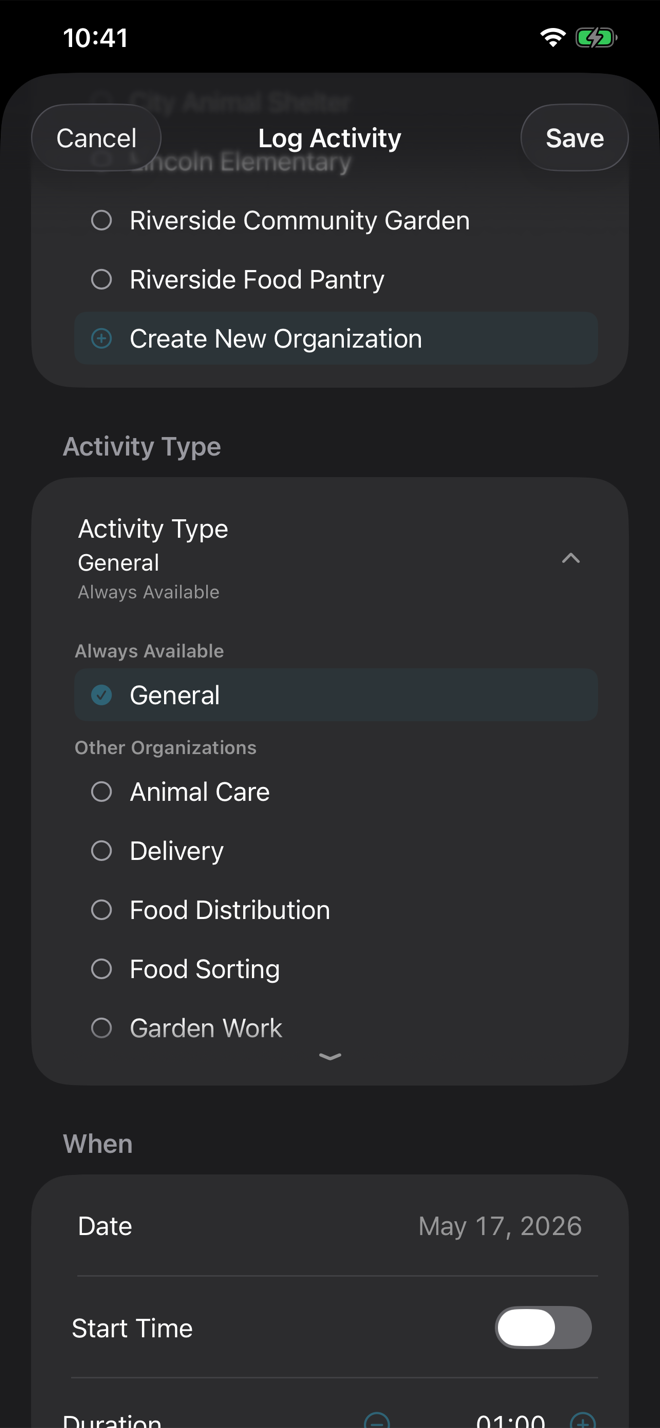
Choose the organization and activity type
Select an existing organization, or create one from the chooser. Activity type defaults to General, the one type the app provides. Any more specific type is one you create yourself — food distribution, tutoring, cleanup, or whatever matches your work.
Set when it happened
Date is required. Start time is optional. If you turn start time on and later decide you do not need it, turn it off again before saving.
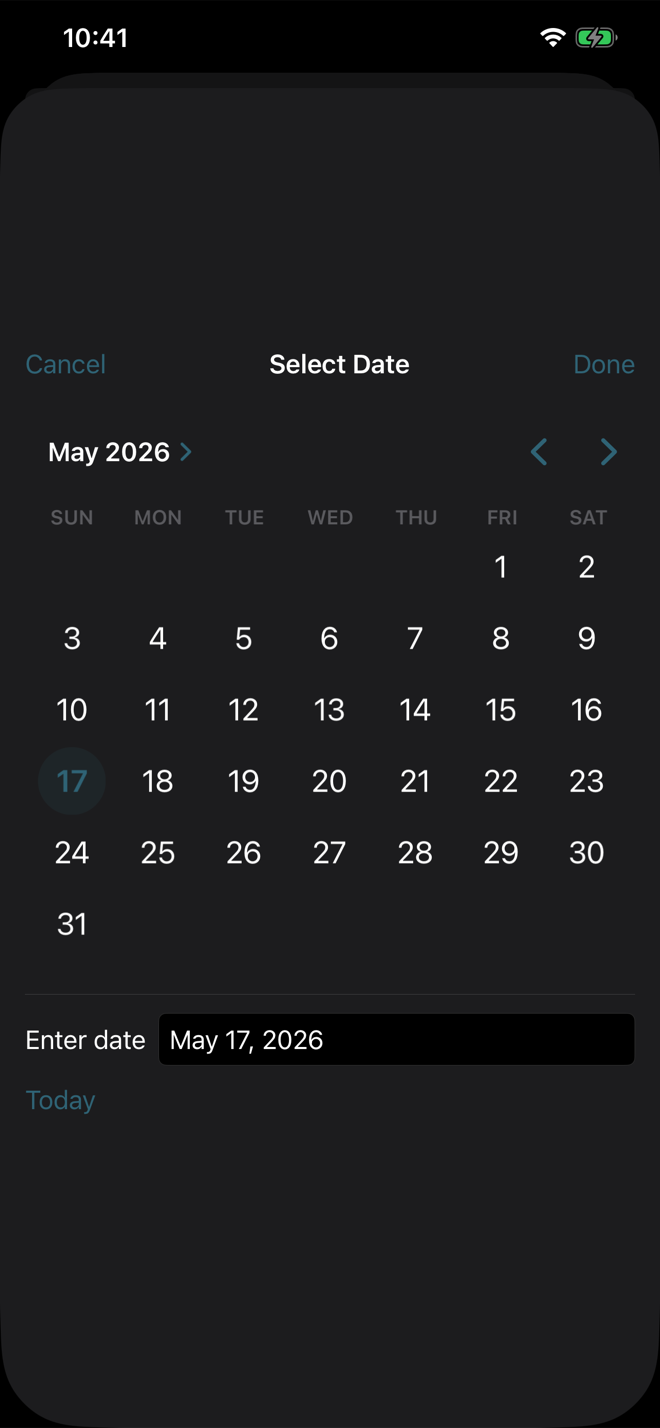
Tap the Date row to open a popover with three ways to set the date: tap a day on the graphical calendar, type it directly into the Enter date field, or tap Today to jump to the current date.
Enter the duration
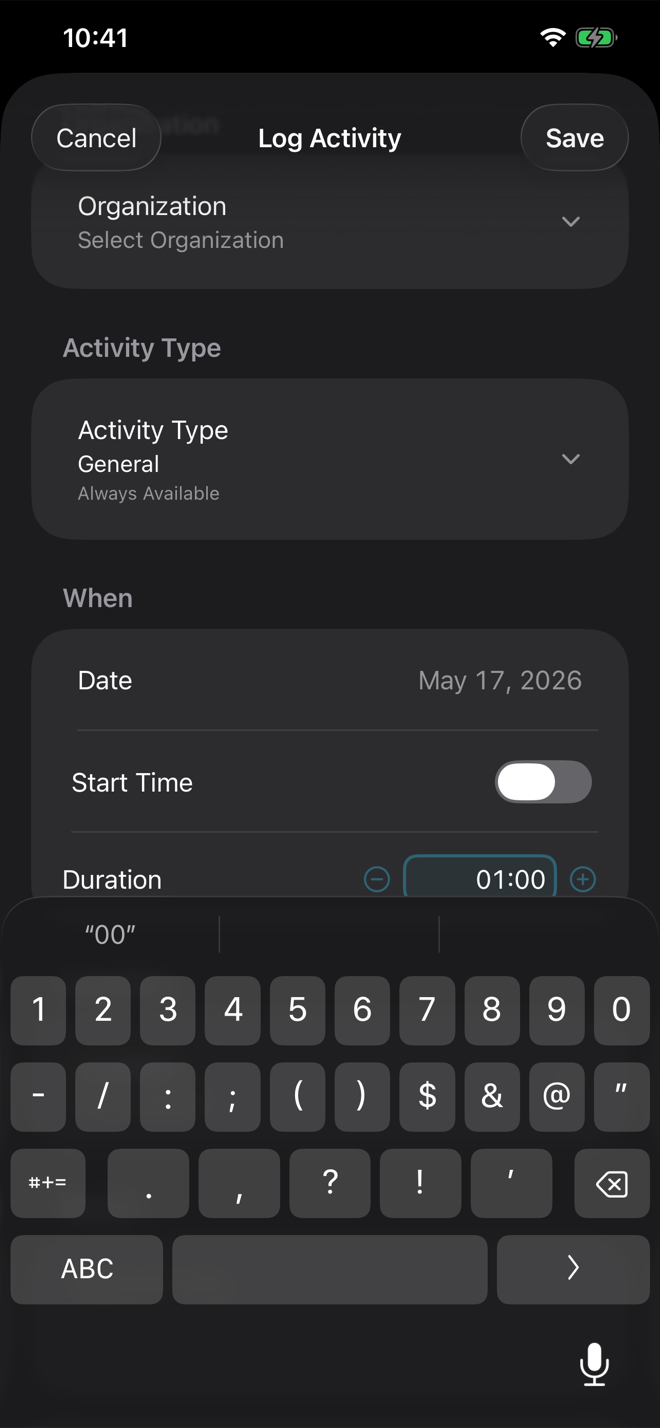
Duration is entered as hours and minutes in HH:MM format. Use the plus and minus controls for 15-minute adjustments, or type the exact value directly.
Add location and notes when useful
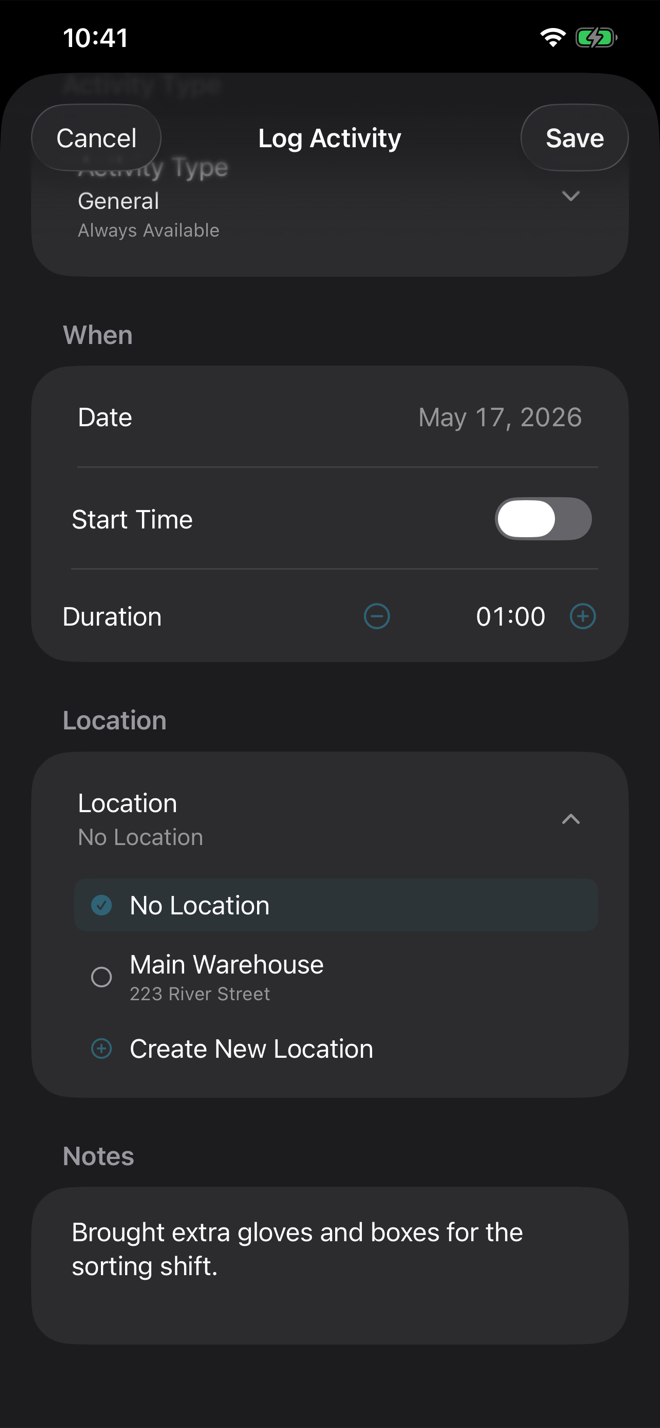
Location is optional. Choose a saved location, create one from the chooser, clear the field if it does not apply, and use notes for details you may want later.
Save, edit, or delete
Tap Save for a new activity or Update when editing. Open recent activities from Dashboard, History, or report drill-downs. Delete only when the entry was logged by mistake; deletion removes it from history and reports.